Shopify only, and free
The PERCUP popup installs as a free app on the Shopify App Store. It's currently available for Shopify stores only — if you're on another platform, talk to your account manager about alternatives.
Steps
1
Find and install the PERCUP app
Go to the Shopify App Store, search for the PERCUP app, and click Install. It's free to add to your store.
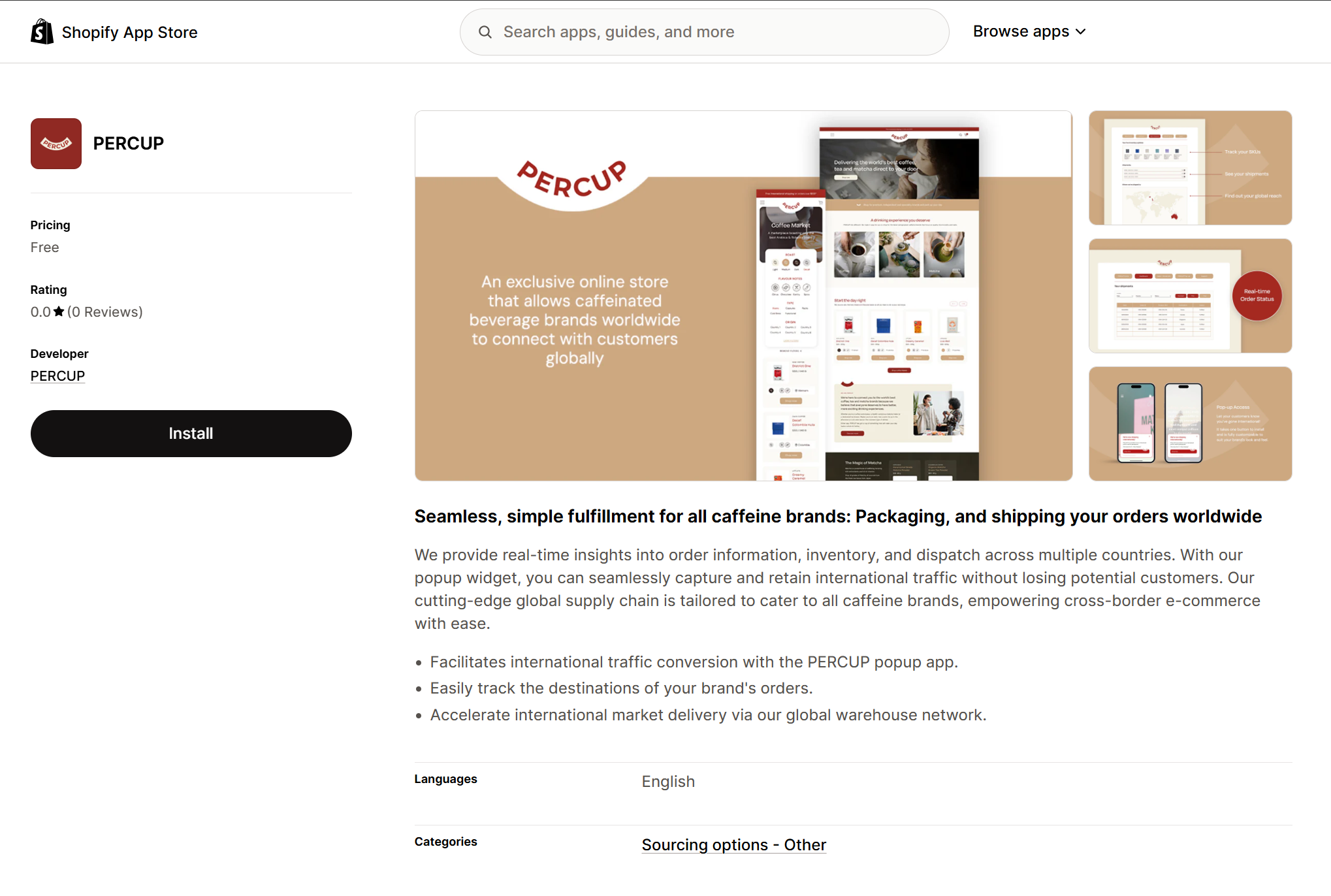
The PERCUP app on the Shopify App Store — free to install.
2
Review the permissions Important
When Shopify asks you to approve access, you'll see PERCUP only requests product and store data to place and run the popup. We never fetch your customer data — we only support you with product information and popup installation.
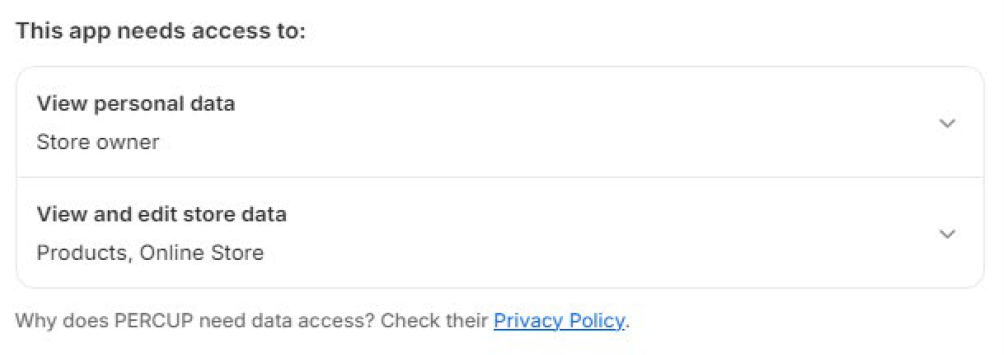
PERCUP asks only for product and store data — your customer data stays yours.
3
Open Popup Settings and enable the app embed
Once installed, open the PERCUP app, go to Popup Settings, and click Enable App Embed. This switches the popup on for your live storefront.
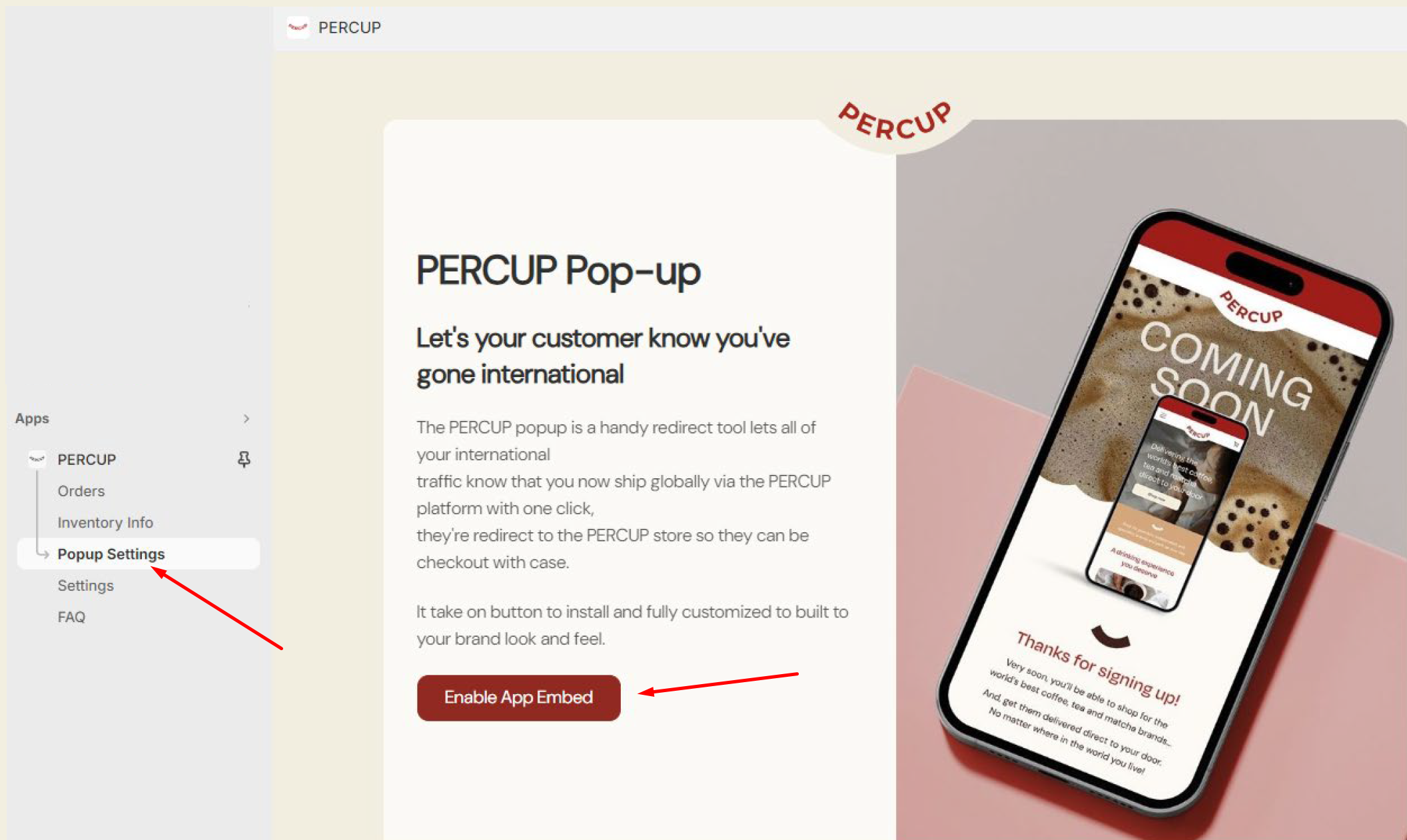
In the app, go to Popup Settings → Enable App Embed.
4
Customize the popup to your brand
In the app embed panel, set the background colour, logo, heading, fonts, text, and button so the popup matches your store's look and feel. A preview updates live as you edit.
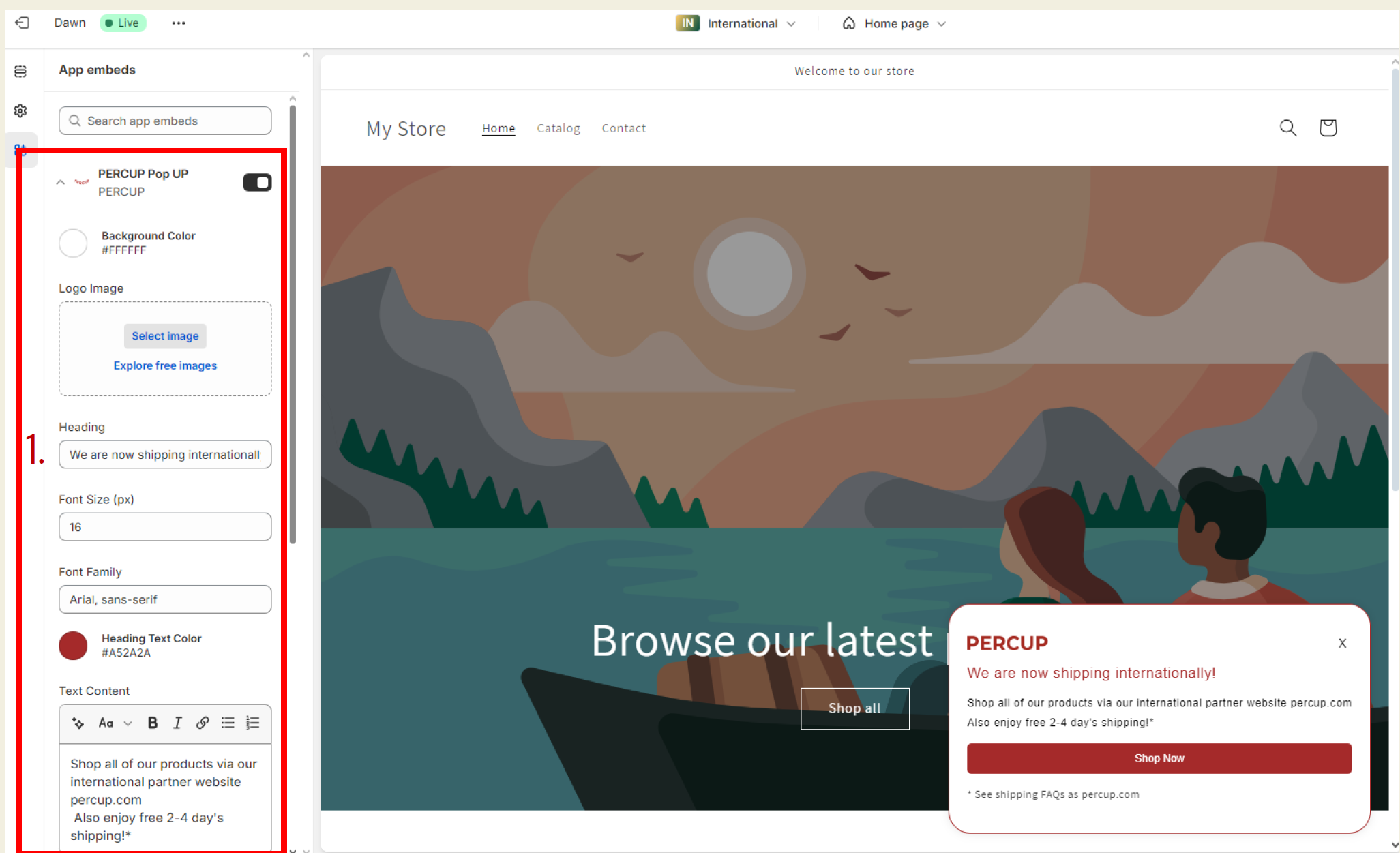
Style every part of the popup — it should feel like a natural part of your store.
5
We configure the redirection PERCUP handles this
This part is on us. From the PERCUP backend, our team sets the redirection to your brand collection page and defines which countries the popup appears for. You don't need to touch it — just let your account manager know you're live.
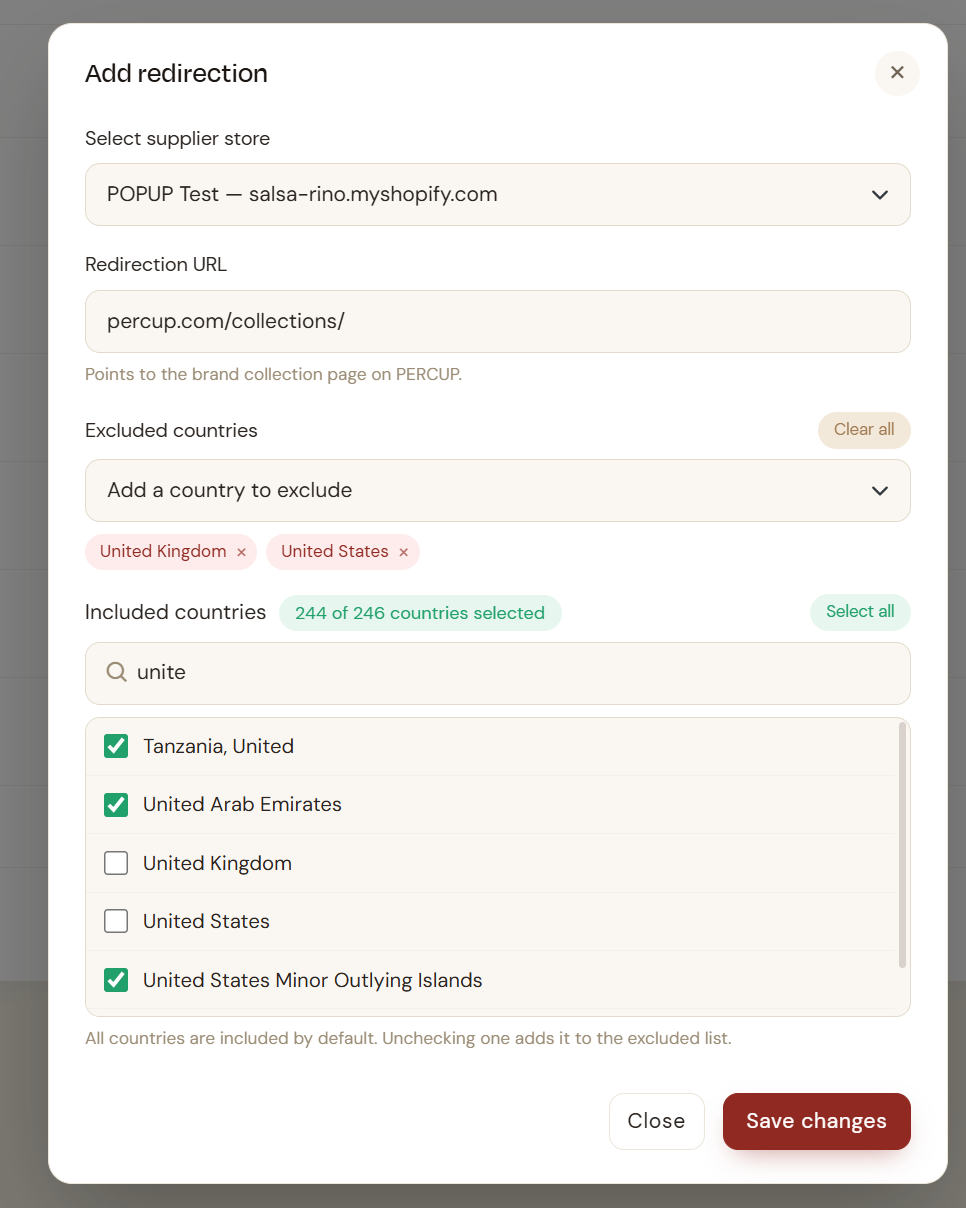
Handled internally — PERCUP points the popup to your brand collection page and sets the countries.
6
The popup goes live for the right countries
The popup appears exclusively to visitors from countries you don't ship to. Instead of a dead end, they get a clean prompt to shop your products via PERCUP — so the sale, and the customer, stay with you.
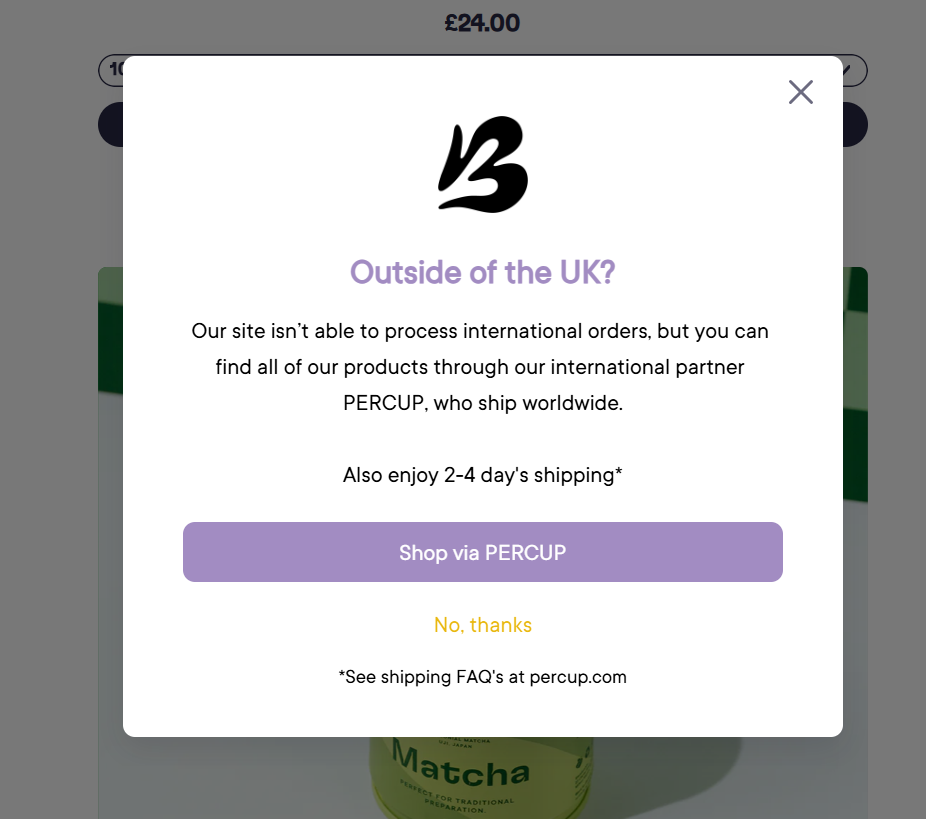
Real example — the live popup shown only to out-of-country shoppers.
What you get
A free, on-brand popup that turns international dead ends into sales — shoppers you couldn't ship to are handed straight to a page where they can buy, with zero risk to your customer data.
Need a hand?
Talk to your account manager
We'll help you install and style the popup, and wire up the redirection from our side. Book a call and we'll walk you through it, or reach out any time.